To zoom out right now, use the magnification shortcut one more time: tap the person-shaped accessibility button at the bottom of the screen, triple-tap the screen, or hold both volume keys, whichever one your phone is set to. If you do not know which it is, open Settings > Accessibility > Magnification and turn off the Magnification shortcut. The zoom ends, and the phone stops listening for the gesture. Below is why this happens in the first place, how to get out of it step by step, and how to keep magnification for the moments you actually want it.
First, zoom back out
Google's help puts it in one line: "To stop magnification, use your magnification shortcut again." The trouble is that most people who land here did not know the shortcut was on. Try these in order.
- Look at the bottom of the screen. If there is a small person-shaped icon in a circle, that is the accessibility button. Tap it once.
- Triple-tap the screen. Tap three times quickly anywhere except the keyboard or the navigation bar. If the triple-tap is what zoomed you in, this is what zooms you out.
- Hold both volume keys at the same time for a moment. Google lists this as the third shortcut; it may not be available on every phone.
- If none of that works, you can still move around while zoomed in by dragging with two fingers, and pinch with two fingers to lower the zoom level. Use that to reach Settings and follow the next section.
If what you see is simply everything being larger, with no zoomed-in window and no panning, that is probably not magnification at all. Jump to the section "If everything is big, not just zoomed" further down.
Why the screen zoomed in by itself
Almost always, the cause is the Triple-tap screen shortcut. Once it is on, any three quick taps in the same spot count: tapping fast in a game, double-tapping a word and then tapping again, a child playing with the phone, or a thumb that bounces. The phone does exactly what it was told and zooms in.
The same shortcut has a side effect that Google's help spells out: "This shortcut may slow down your device." After every single tap, the phone waits a moment to see whether two more taps are coming. That is why taps can feel sluggish on a phone where the triple-tap is on, even when nothing is zoomed.
Two other things can look like an accident. On Android 13 and later, magnification can be set to zoom a window instead of the whole screen, so a rectangle appears over part of the display. And Android has a temporary zoom: with the shortcut active, touching and holding the screen zooms in only while your finger stays down and goes back to normal when you lift it.
Make it stop happening, without losing the feature
You have three choices. The first one keeps magnification and removes the accidents.
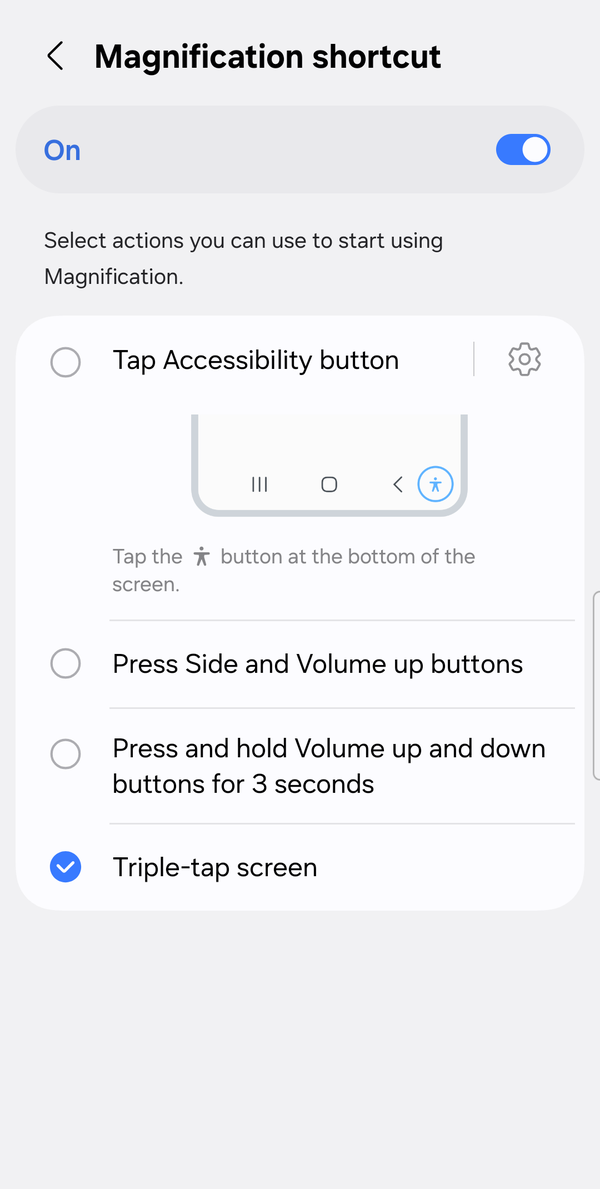
Change the shortcut, not the feature.
- Open Settings > Accessibility > Magnification. On a Samsung Galaxy phone it is deeper, under Vision enhancements > Size and zoom (the menu name may differ by model and software version).
- Tap Magnification shortcut.
- Choose Accessibility button or Hold volume keys, and untick Triple-tap screen.
Now zooming only happens when you press something on purpose, and the tap delay is gone, because the phone no longer has to count taps.
Turn the shortcut off. On the same screen, switch the Magnification shortcut off. The feature stays on your phone; nothing is listening for it. You can switch it back on any day.
Switch from the button to the volume keys. If the accessibility button itself keeps getting pressed, since it floats near the navigation area, pick Hold volume keys instead. Google notes that the button's position depends on whether you use gesture navigation or the three-button bar, which is why it sometimes sits where a thumb lands.
If everything is big, not just zoomed
If the whole phone looks enlarged, with bigger icons and bigger text everywhere, but there is no zoomed window and nothing moves when you drag with two fingers, you are probably looking at Display size or Font size, not magnification.
- Open Settings and search for Display size (the name on Pixel phones). On Samsung the same setting is Screen zoom, at Settings > Display > Screen zoom; searching a Galaxy's settings for "Display size" finds nothing. Move the slider down, or use Reset settings to go back to the default.
- If only text is big, search for Font size and lower that slider.
If just one web page is huge, that is Chrome's own zoom. Tap More (three dots) > Zoom to change it for that site, or More > Settings > Accessibility > Default zoom for all sites.
The differences between these settings are covered in a separate post: Font size vs. screen zoom on Android.
Keeping magnification for when you need it
Turning the shortcut off is the quick fix, but a lot of people who get here were using magnification on purpose some of the time, for small print, a photo, a menu. Three ways to keep it handy and still avoid accidents.
- Use the Accessibility button as the shortcut. Every zoom is a deliberate tap.
- Use temporary zoom for quick looks: start the shortcut, then touch and hold the screen; lift your finger and you are back to normal.
- On Android 13 and later, set the Magnification type to a window rather than the whole screen, so the rest of the display stays put.
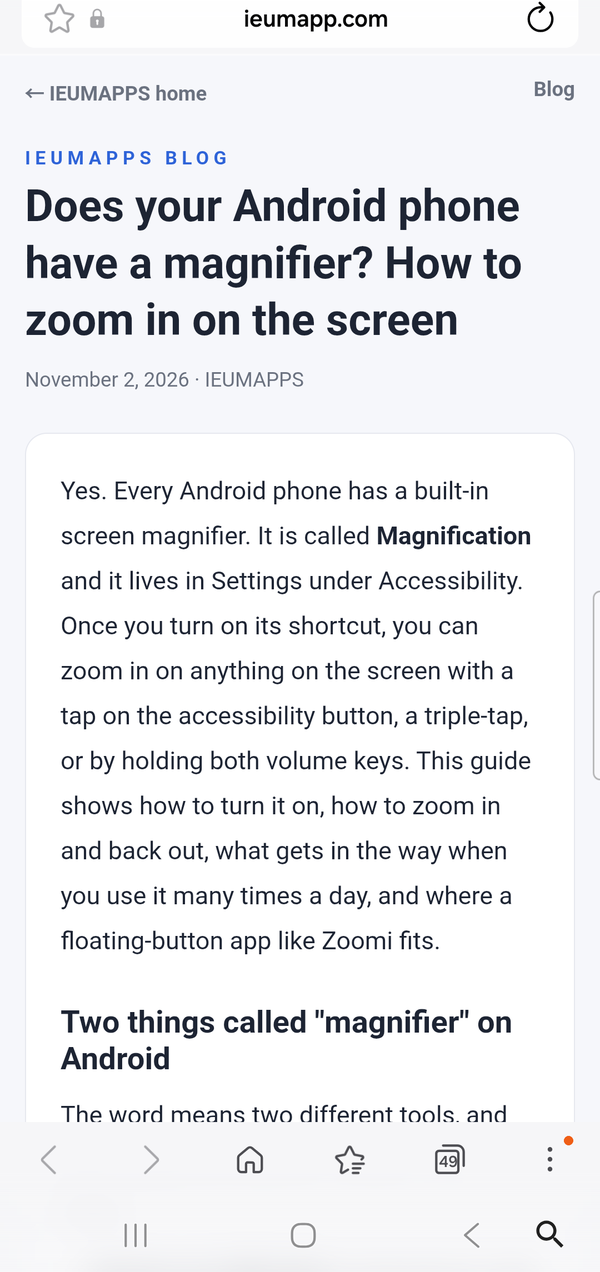
The full guide to turning magnification on, zooming and panning is here: Does your Android phone have a magnifier?
Where Zoomi fits
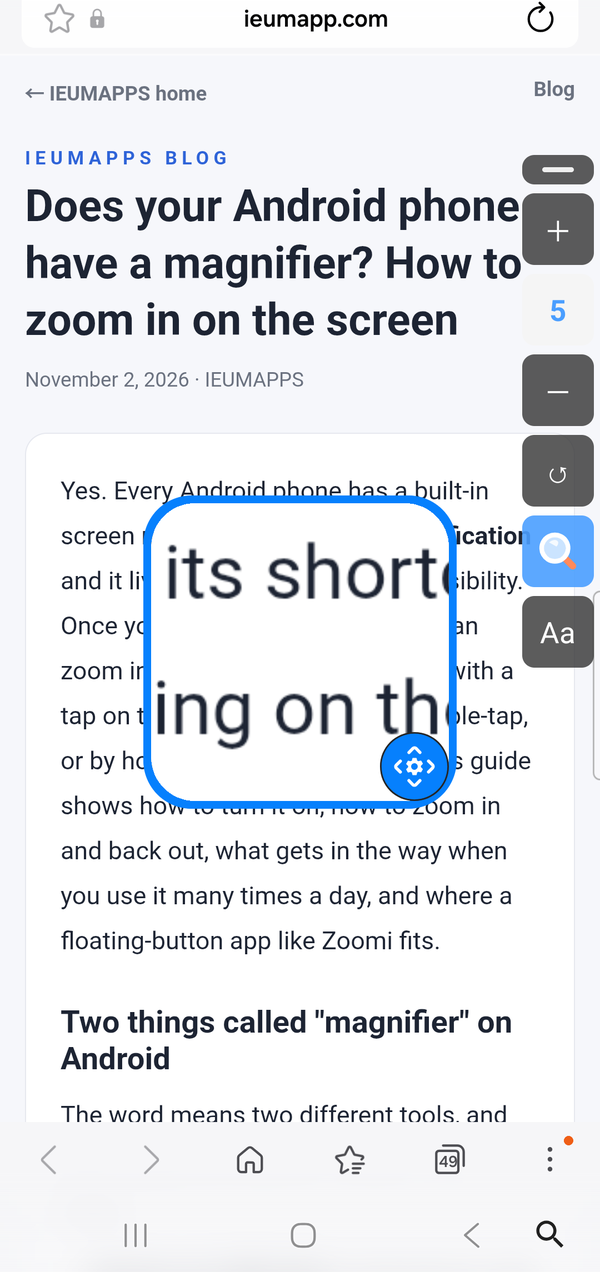
Zoomi (by IEUMAPPS) is an Android screen magnification accessibility app for people with low vision and other visual difficulties: one floating button opens a magnifier window and enlarges the text across the phone.
Zoomi has no tap gesture to misfire. A small button stays on the screen; the screen zooms when you tap it and only then. There is nothing counting your taps in the background, so there is no tap delay either. Tap the button for a magnifier window with 9 zoom levels, or for bigger text across the phone in 9 levels, drag the button anywhere, and it shrinks on its own when you are done. The person-shaped accessibility button can open Zoomi too, and if Android removes that button after the phone sits unused, Zoomi puts a magnifier-shaped stand-in button in the same spot.
Zoomi runs on Android 8.0 or later; the magnifier window needs Android 13 or later, and older versions magnify the whole screen. It uses Android's accessibility service only to control the zoom and does not declare the permission to read screen content. Everything is free for 14 days, then a single one-time unlock ($0.99 in the US, prices vary by country). No subscription, no ads.
FAQ
If I turn off the Magnification shortcut, do I lose the feature? No. The shortcut is only the trigger. Magnification stays in Settings > Accessibility, and you can turn the shortcut back on whenever you want it.
Why does my phone zoom in when I tap quickly in games? The Triple-tap screen shortcut is on. Three quick taps in one place start magnification. Change the shortcut to the Accessibility button or Hold volume keys and quick taps in games go back to being just taps.
Can Zoomi zoom in by accident too? Zoomi only zooms when you tap its floating button, or when you open it from the accessibility button. There is no triple-tap or hold gesture listening in the background.
If you would rather have a button you press on purpose than a gesture that guesses, the Zoomi guide, FAQ and privacy details are here: