If the words in your messages, mail and news apps are too small, start with Font size. If the buttons and icons feel too small as well, use Display size, which Samsung calls Screen zoom. And if some apps, photos or web pages stay small no matter what you set, that is the job of Magnification, which enlarges whatever is on the screen at that moment. The three settings live in different places and change different things, so this guide goes through them one at a time and ends with how to combine them.
Three settings, three different jobs
Android does not have one "make everything bigger" switch. It has three controls that are easy to mix up.
- Font size changes the size of text and nothing else. Buttons, icons and pictures stay where they are, and longer sentences simply wrap onto more lines. Google's help says the slider goes up to 200%.
- Display size changes the size of everything drawn on the screen: text, icons, buttons, spacing. It is a bit like holding the phone closer. Because everything grows, fewer things fit on one screen. Display size is Google's name, the one you see on Pixel phones; Samsung Galaxy phones call the same setting Screen zoom and put it under Display.
- Magnification does not change any setting for good. It zooms in on what is on the screen right now, including photos, text inside images, and apps that ignore the font-size setting. You turn it on, look, and turn it off. The full guide to it is in a separate post: Does your Android phone have a magnifier?
The first two are settings you adjust once and leave. The third is a tool you call when you need it.
How to change the font size
Google's steps work on most Android phones:
- Open Settings.
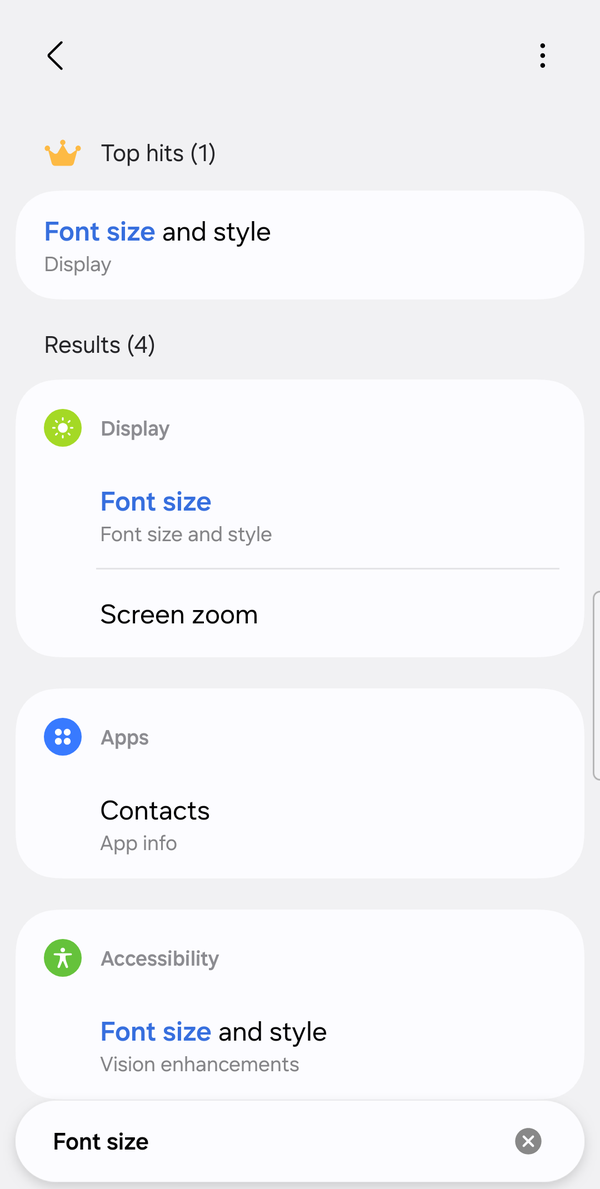
- Search for Font size and tap the result.
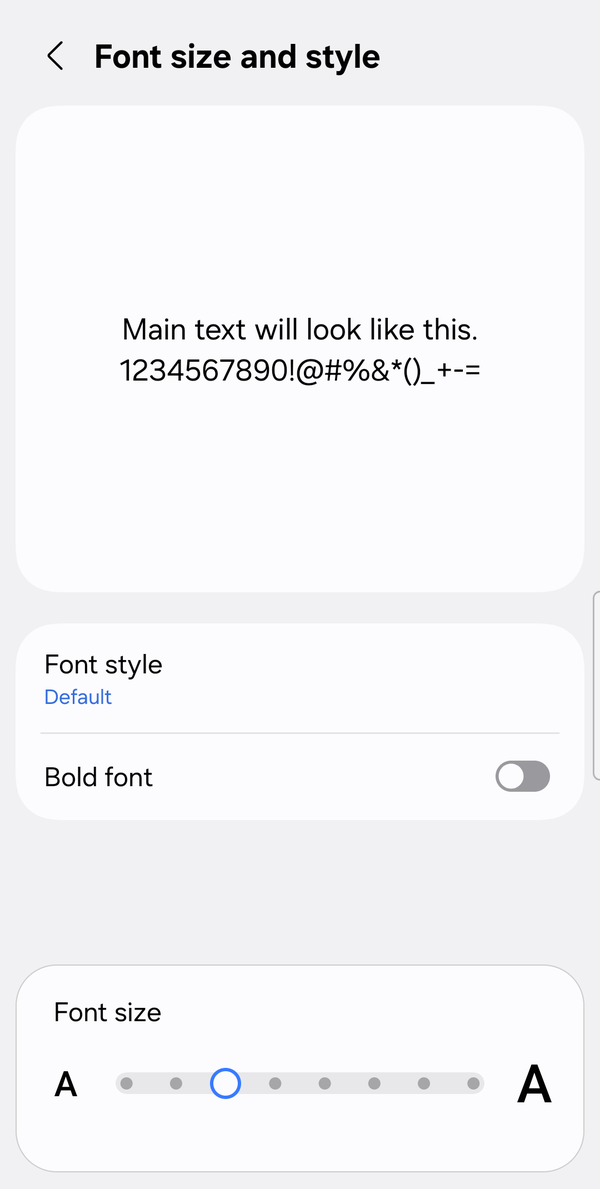
- Move the slider left or right until the preview text is comfortable to read.
Google's help also mentions a Font Size tile in Quick Settings (swipe down from the top of the screen). Once you have adjusted the font size in Settings, the tile is added for you, and you can raise or lower the size from there without opening Settings again.
On a Samsung Galaxy phone the path is Settings > Display > Font size and style. The slider changes the size, and the same screen has a Bold font switch, which makes thin text easier to make out without making it larger. Samsung notes that menus can differ by model and software version.
How to change the display size (Screen zoom on Samsung)
- Open Settings.
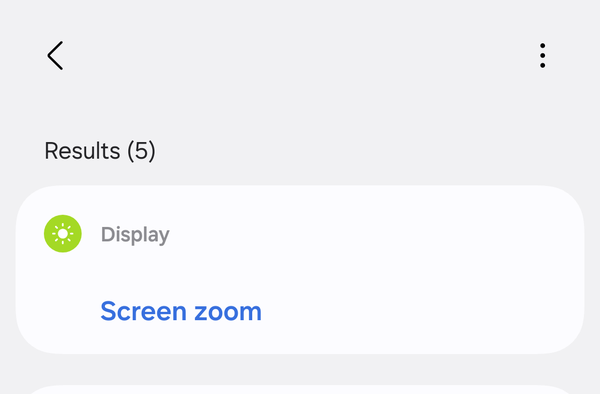
- Search for the setting. On Pixel phones it is Display size. On a Samsung Galaxy phone search for Screen zoom instead; typing "Display size" into a Galaxy's settings search finds nothing, because that name is not used there.
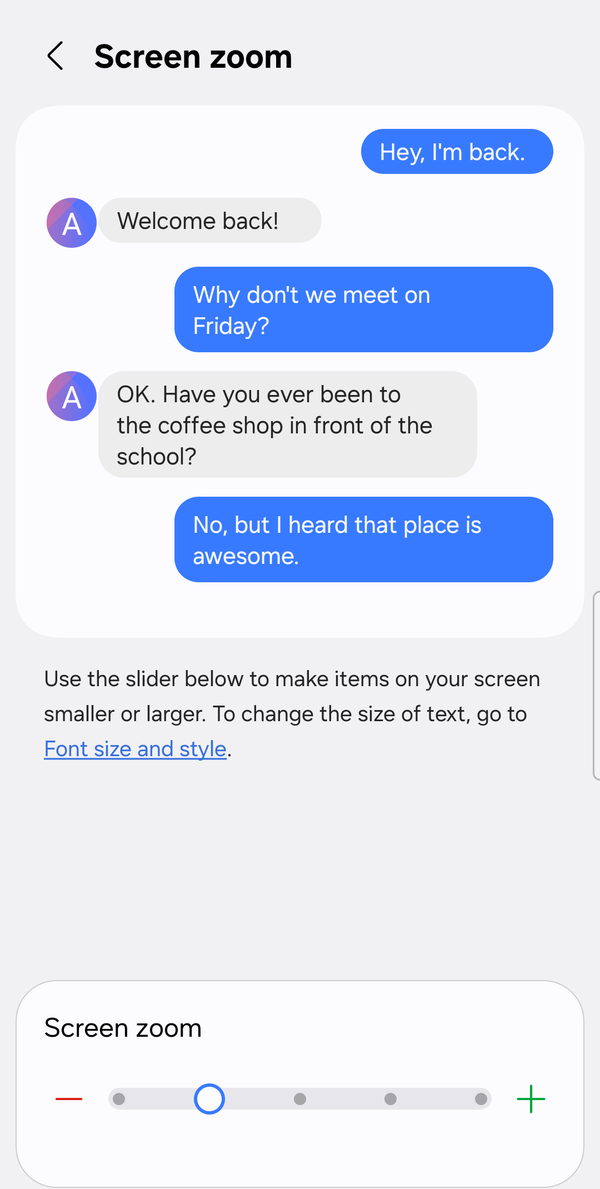
- Tap the result and move the slider while watching the preview. Google's help says you can tap Reset settings to go back to the phone's default.
On Samsung the path is Settings > Display > Screen zoom, with a slider at the bottom of the screen. Samsung describes it as a way "to enlarge the contents on your screen if necessary, such as when reading an article". On some foldable models the menu is called Screen layout and zoom instead.
Two things to expect after you raise it. Rows of icons on the home screen may rearrange, and a line of text that fit before may now wrap. That is normal, because everything on the screen is now taking up more room.
Why some apps stay small
This is the part that surprises people. You raise the font size, your text messages look better, and then one app is still exactly as small as it was.
Google's own help page says it plainly: "The font size setting doesn't apply to some apps." An app can draw its text at a fixed size, and the system slider has no effect on it. Text inside pictures never changes either, because to the phone it is a photo, not text: a screenshot a friend sent, a photo of a menu, a label in an online shop. Games often use their own sizes too.
Web pages are a separate case again. Chrome on Android has its own zoom. In Chrome, tap More (the three dots) > Settings > Accessibility, and move the Default zoom slider "until you can read the preview text comfortably". If a site blocks pinch-zoom, the same screen has Force enable zoom. You can also zoom a single site from More > Zoom, and Chrome remembers that level for that site only.
So it is possible to have Font size, Display size and Chrome all set high and still meet small text once or twice a day. For those moments, Magnification is the tool that works on everything, because it enlarges the pixels on the screen rather than asking the app to redraw. The trade-off is that it is temporary, and you move around the zoomed view with two fingers.
Which one should you try first?
Change one thing at a time, because the settings stack and a screen can get crowded quickly.
- Set Font size to the level where a text message reads easily. For most people this fixes messages, mail, chat and news apps in one go.
- If the keyboard, buttons or icons are still hard to hit, raise Display size (Screen zoom) by one step and live with it for a day before going further.
- Keep the Magnification shortcut turned on for the leftovers: photos, small print in an app that ignores the slider, a web page you only visit once.
If you are setting up someone else's phone, do step 1 together and let them tell you when it looks right. A size that looks huge to you may be exactly right for them.
Where Zoomi fits
Zoomi (by IEUMAPPS) is an Android screen magnification accessibility app for people with low vision and other visual difficulties: one floating button opens a magnifier window and enlarges the text across the phone.
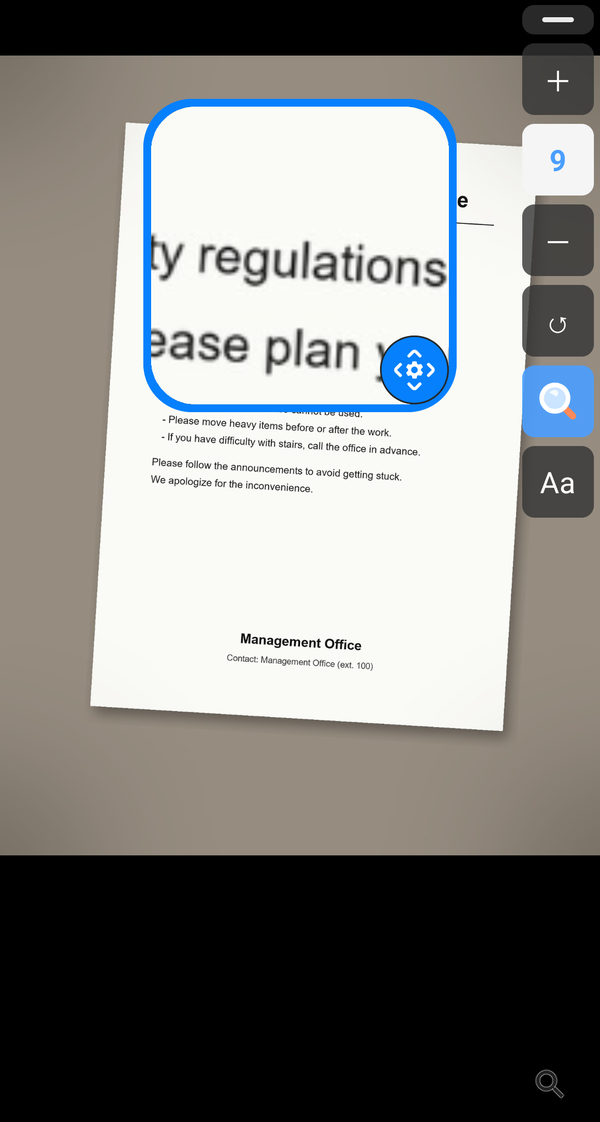
It puts the two tools from this guide behind one button that stays on the screen. Bigger text raises the system font size, the same setting as above, across 9 levels, without a trip into Settings each time. Screen zoom opens a magnifier window over the part you are reading, with 9 zoom levels, for the apps and pictures the font slider never reaches. You drag the window where you need it, and the button shrinks on its own when you are done.
Zoomi runs on Android 8.0 or later; the magnifier window needs Android 13 or later, and older versions magnify the whole screen. It uses Android's accessibility service only to control the zoom, and it does not declare the permission to read screen content, so it cannot see what you are reading. Everything is free for 14 days; after that a single one-time unlock keeps it ($0.99 in the US, prices vary by country). No subscription, no ads.
FAQ
Is "Display size" the same thing as Samsung's "Screen zoom"? Yes. Google's Android help calls it Display size, and that is the name on Pixel phones; Samsung's Galaxy settings call the same control Screen zoom, under Settings > Display. Both make everything on the screen larger, not just text.
I raised the font size, but one app did not change. Why? Google's help notes that the font size setting does not apply to some apps. Those apps set their own text size, and text inside images never changes. Try the app's own settings first (Chrome has Default zoom under Settings > Accessibility), and use Magnification for the rest.
Does Zoomi change the font size, or does it zoom the screen? Both, from the same floating button. Bigger text changes the system font size in 9 levels; Screen zoom opens a magnifier window in 9 levels for things the font setting cannot reach. It is free for 14 days, then a one-time purchase.
If you want both tools on one button instead of two trips into Settings, the Zoomi guide, FAQ and privacy details are here: