Yes. Every Android phone has a built-in screen magnifier. It is called Magnification and it lives in Settings under Accessibility. Once you turn on its shortcut, you can zoom in on anything on the screen with a tap on the accessibility button, a triple-tap, or by holding both volume keys. This guide shows how to turn it on, how to zoom in and back out, what gets in the way when you use it many times a day, and where a floating-button app like Zoomi fits.
Two things called "magnifier" on Android
The word means two different tools, and that is why the question comes up so often.
- Screen magnification zooms in on what is already on your display: a message, a web page, a photo. This is what the Android Accessibility setting does, and it is what this guide is about.
- A camera magnifier turns the rear camera into a magnifying glass for things in front of the phone, such as a menu or a label. Samsung's help describes a "Magnifier" widget that does exactly this on Galaxy phones. It is a separate feature and does not enlarge your screen.
If small text on the screen is what is hard to read, you want the first one.
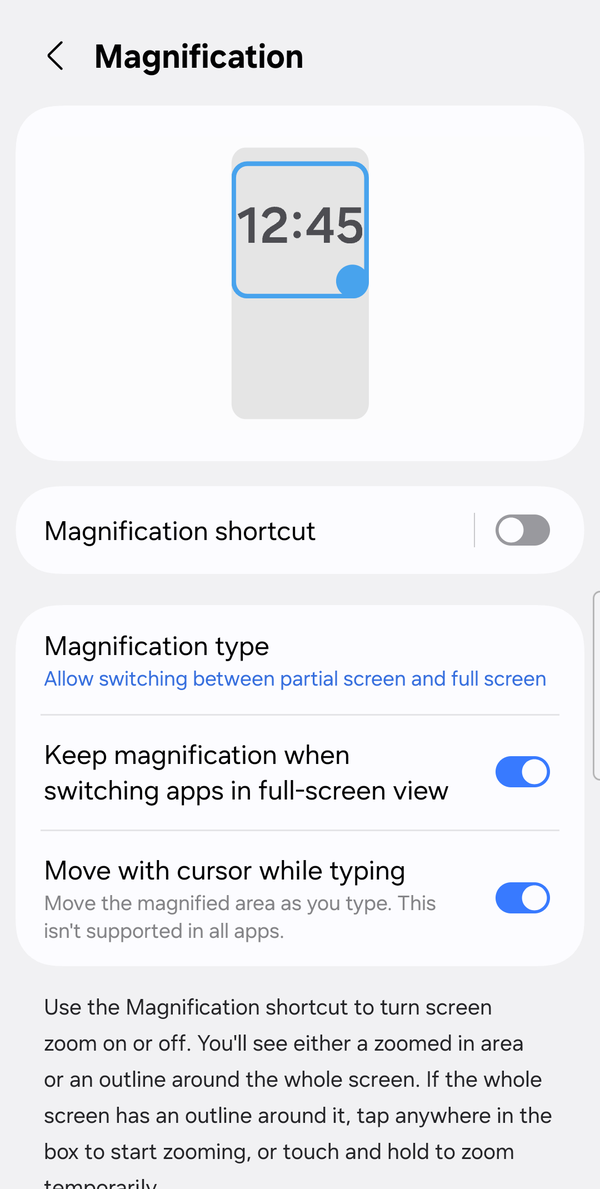
How to turn on the Android screen magnifier
- Open Settings and tap Accessibility.
- Tap Magnification. On a Samsung Galaxy phone it is deeper: Settings > Accessibility > Vision enhancements > Size and zoom > Magnification. The menu name may differ by model and software version.
- Turn on the Magnification shortcut.
- Tap the shortcut setting to choose how you want to start it. Google lists three options: - Accessibility button — a person-shaped icon appears at the bottom of the screen. Tap it to start magnifying. - Hold volume keys — press and hold both volume keys at the same time. - Triple-tap screen — quickly tap the screen three times. Google's help notes this shortcut "may slow down your device". More on that below.
Samsung's own pages mention the triple-tap and the Accessibility shortcut, so the volume-key option may not appear on every phone.
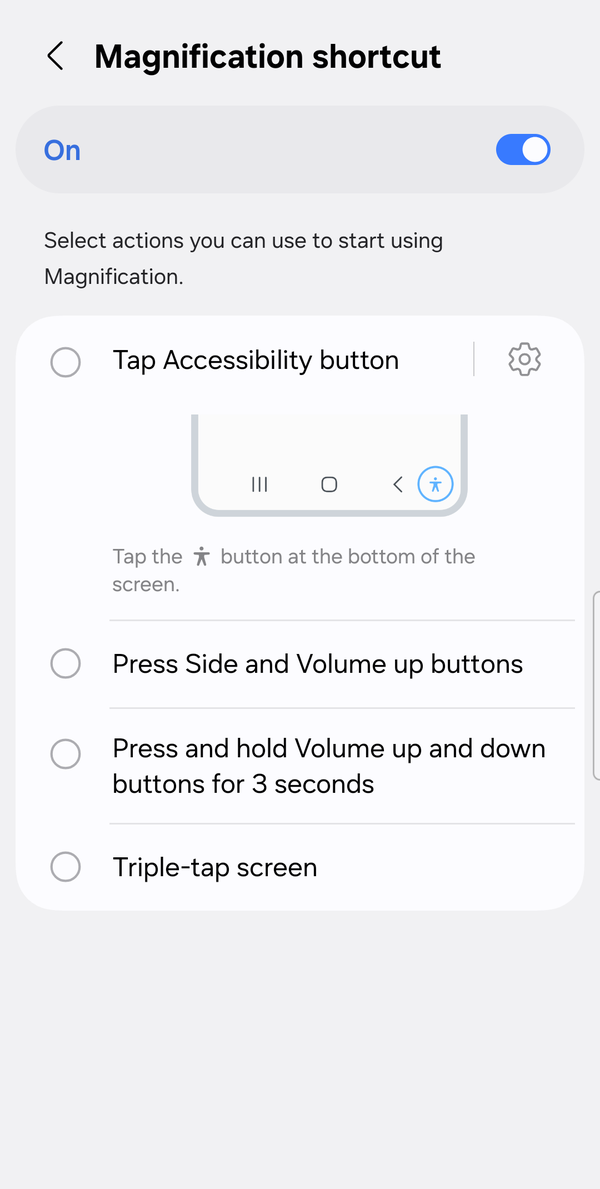
How to zoom in on the screen
Full-screen zoom
- Tap the accessibility button, or use the shortcut you chose.
- Tap anywhere on the screen except the keyboard or the navigation bar.
- Drag with two fingers to move around the zoomed screen.
- Pinch with two fingers to change the zoom level. Android goes up to 8x.
- To stop, use the shortcut again.
Temporary zoom. For a quick look, start the shortcut, then touch and hold the screen. Drag your finger to move around and lift it to go back to normal.
Zoom in on part of the screen. On Android 13 and later you can magnify a window instead of the whole screen. In the Magnification settings look for Magnification type and switch to partial screen (the wording may differ). Then drag the window with two fingers and pinch to adjust it.
How to zoom back out or turn it off
- To zoom out, use the same shortcut you used to zoom in: tap the accessibility button again, hold the volume keys again, or triple-tap again.
- If the screen keeps zooming when you do not want it to, go back to Settings > Accessibility > Magnification and turn the Magnification shortcut off. The feature stays on your phone; it just stops listening for the gesture.
What gets in the way
The built-in magnifier does its job. These are the parts that Google's and Samsung's help pages themselves describe, and they show up when you zoom many times a day.
- The triple-tap makes every tap slower. Google's help says the triple-tap shortcut may slow down your device and that single taps take slightly longer, because the phone has to wait and see whether two more taps are coming. You feel it in every app, not just while zooming.
- Moving around takes two fingers. Once zoomed in, you drag with two fingers to pan and pinch to change the level. On a phone held in one hand that is a two-hand step.
- The accessibility button is not always in the same place. Google notes that its position depends on your navigation setup, gesture navigation or the three-button bar. On a phone you set up for someone else, the button can be somewhere they are not expecting.
- Zoom can drop when you switch apps. Opening or closing an app while zoomed in may zoom you out, depending on your settings, so you start again in the next app.
- The keyboard is not magnified. Tapping the keyboard or the navigation bar does not zoom, and zooming into the keyboard itself only arrived in Android 16.
None of this means you should skip the built-in tool. If you zoom now and then, the shortcut is enough. The gap appears when small text is a daily problem and you want the control to be visible, in the same spot, every time.
Where Zoomi fits
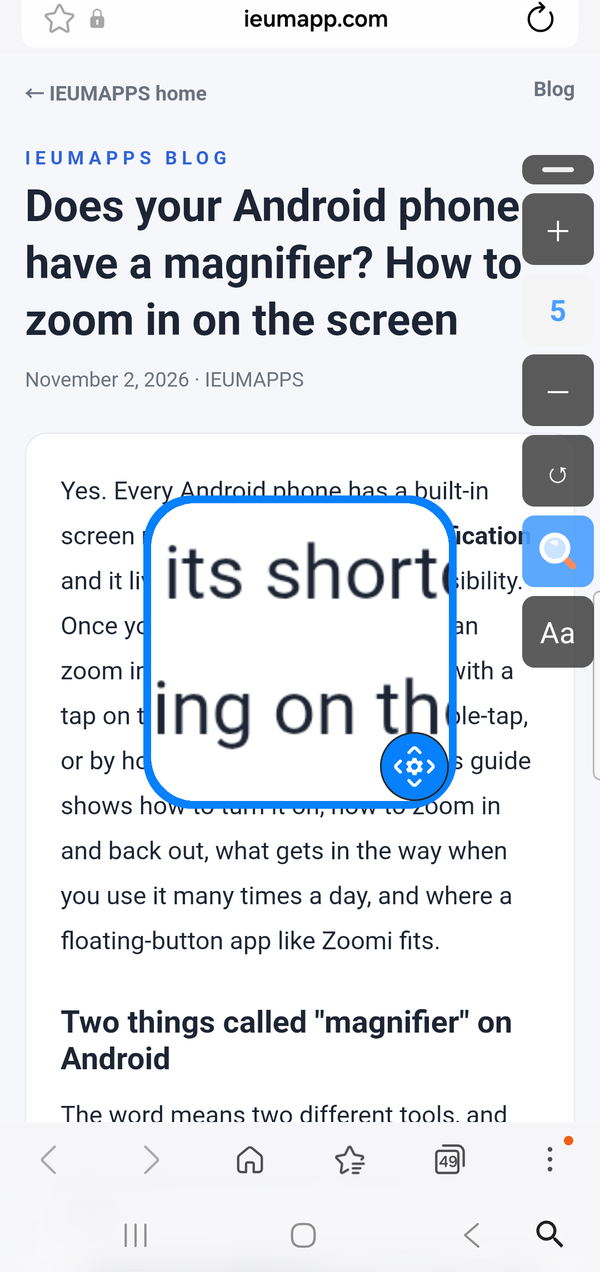
Zoomi (by IEUMAPPS) is an Android screen magnification accessibility app for people with low vision and other visual difficulties: one floating button opens a magnifier window and enlarges the text across the phone.
Instead of a gesture to remember, a small button stays on your screen. Tap it and you get two tools:
- Screen zoom opens a magnifier window over the part you are reading. The zoom has 9 levels, and you drag the window wherever you need it.
- Bigger text raises the system font size across 9 levels, so messages, news and chat apps all change together.
You can drag the button anywhere, it shrinks on its own when you are done, and the levels you chose stay where you left them. Underneath, Zoomi uses Android's accessibility service to control the zoom, because that is the only way Android lets an app magnify the screen. Zoomi does not declare the permission to read screen content, so it cannot read the text or images you are looking at, and it has no server. The internet permission you see in app info belongs to the Google Play Billing Library, which handles the unlock.
Two things to know before you install. Zoomi runs on Android 8.0 or later; the partial-screen magnifier window needs Android 13 or later, and older versions magnify the whole screen. Zoomi can also be opened from the same person button at the bottom of the screen, and if Android removes that button after the phone sits unused, Zoomi puts a magnifier-shaped stand-in button in the same place. Step 3 of the in-app guide (App info > Battery > Unrestricted) makes that happen less often.
Everything is free for 14 days. After that, a single one-time unlock keeps it. In the US it is $0.99; prices vary by country. No subscription, no recurring charges, no ads.
FAQ
What is the magnifier on Android, and where is it? Android's screen magnifier is the Magnification setting under Settings > Accessibility. On Samsung Galaxy phones it sits inside Vision enhancements, under Size and zoom (the menu name may differ by model). Galaxy phones may also have a separate camera "Magnifier" widget that enlarges things in front of the phone; that one does not zoom the screen.
Why do taps feel slower since I turned on magnification? You probably chose the triple-tap shortcut. Google's help says it may slow down your device, because each single tap waits a moment so the phone can tell whether a triple-tap is coming. Switch the Magnification shortcut to the Accessibility button or Hold volume keys and taps go back to normal.
Is Zoomi free, or is it a subscription? Every feature is free for 14 days after you install it. After that you pay once to keep using it: $0.99 in the US, with prices that vary by country. There is no monthly charge and no ads. The unlock is tied to the Google account on that phone and does not support family sharing.
If you would rather have a button on the screen than a gesture, Zoomi is on Google Play. The full guide, FAQ and privacy details are here: