Before you search for a low vision app, open Settings on your Android phone. Most of the tools people download an app for are already there, under Accessibility: bigger and bolder text, high contrast, color inversion and correction, a screen that dims below the normal minimum, a magnifier, and a reader that speaks whatever you tap. Each one fixes a different problem, and they work best when you pick the one that matches what is actually hard to see. This guide goes tool by tool, with the symptom it is for, and ends with the one case the built-in tools handle least well.
Start with the symptom, not the setting
Google's and Samsung's help pages list the vision tools in a long menu, which makes it tempting to switch on several at once. A faster way is to name what is wrong first:
- Text is too small everywhere: Font size, then Display size.
- Text is big enough but thin or washed out: Bold text, High contrast text (Outline text on Android 16).
- The screen is too bright, or white pages hurt: Dark theme, then Extra dim.
- Some colors look the same: Color correction.
- One app, a photo or a web page stays small whatever you set: Magnification.
- Reading is tiring, or you would rather listen: Select to Speak.
- You cannot see the screen well enough to read at all: TalkBack.
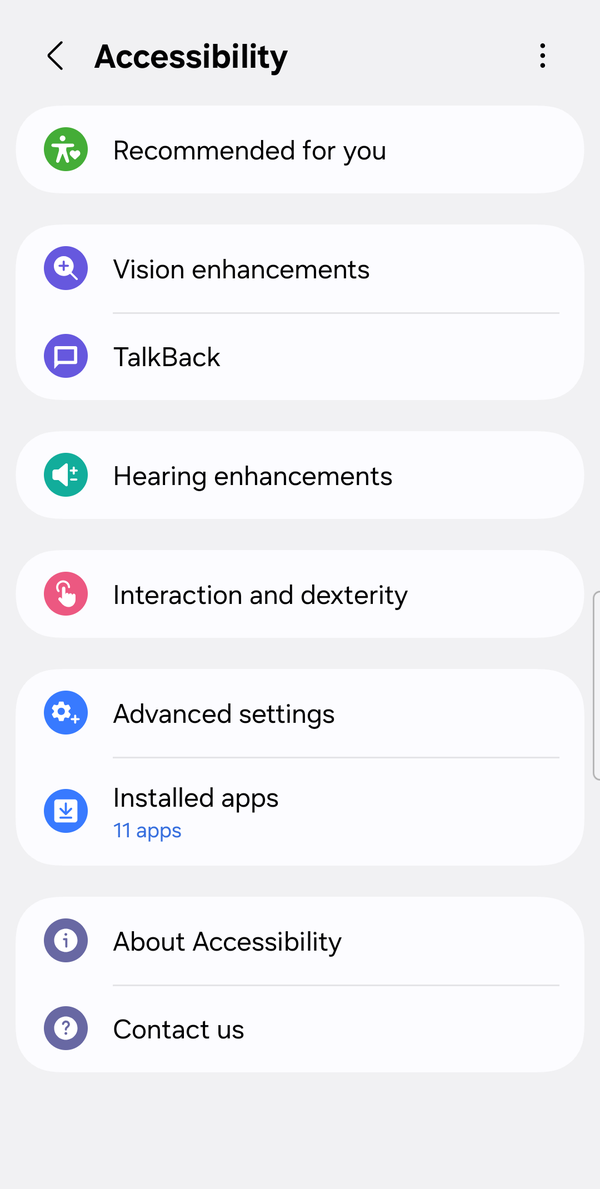
The sections below take these in the same order. Menu names are Google's, as they appear on Pixel phones; Samsung Galaxy phones put most of them under Settings > Accessibility > Vision enhancements, and the Galaxy path is given wherever it differs. Samsung notes that available settings vary by model and software version.
Text too small: Font size and Display size
These two are the first stop and they are covered step by step in an earlier post, so only the short version here. Font size makes text bigger and leaves everything else alone; Google's help says it goes up to 200%. Display size (Samsung: Screen zoom) makes everything bigger, including buttons and icons. Change one at a time. The full walkthrough, including why some apps ignore the font slider, is here: Font size vs. screen zoom on Android.
Text thin or washed out: Bold text and high contrast
Bigger is not always clearer. Thin grey text on a light background can stay hard to read even at a large size. Two settings change the text itself rather than its size.
On Pixel phones:
- Open Settings > Accessibility > Display size and text.
- Turn on Bold text. Google's help notes that some apps do not follow this setting.
- On the same screen, turn on High contrast text. Google describes it as changing text to black or white, whichever contrasts more with what is behind it. On Android 16 and later this option is replaced by Outline text, which draws an outline around letters; Google says to use High contrast text on Android 15 and below.
On a Galaxy phone the two switches are in different places:
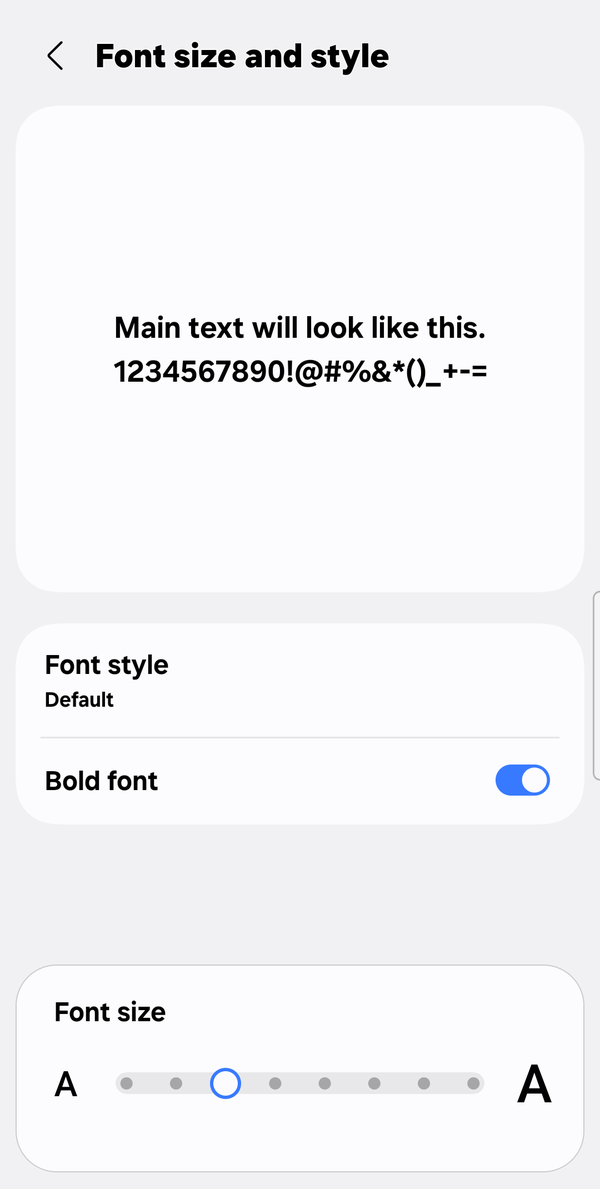
- Bold is the Bold font switch on Settings > Display > Font size and style, below the font preview.
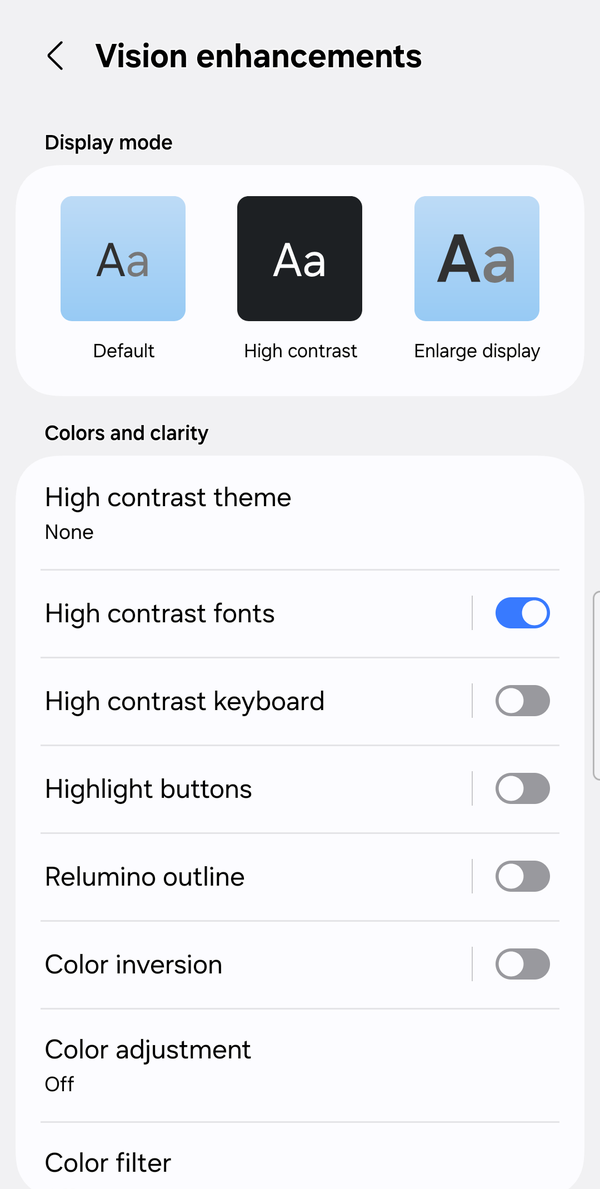
- The outline option is Settings > Accessibility > Vision enhancements > High contrast fonts, which Samsung describes as adding "an outline to all fonts so that they stand out against the screen". The same Vision enhancements screen starts with a Display mode row (Default, High contrast, Enlarge display) that applies several of these changes at once, and it lists Highlight buttons, which marks buttons so they are easier to find on a busy screen.
Screen too bright: Dark theme and Extra dim
If white pages are uncomfortable rather than unreadable, the fix is brightness and background, not size.
- Try Dark theme first. On Pixel phones it is Settings > Display > Dark theme; on a Galaxy it is the Light / Dark choice at the top of Settings > Display. Most of Google's apps and many others follow it.
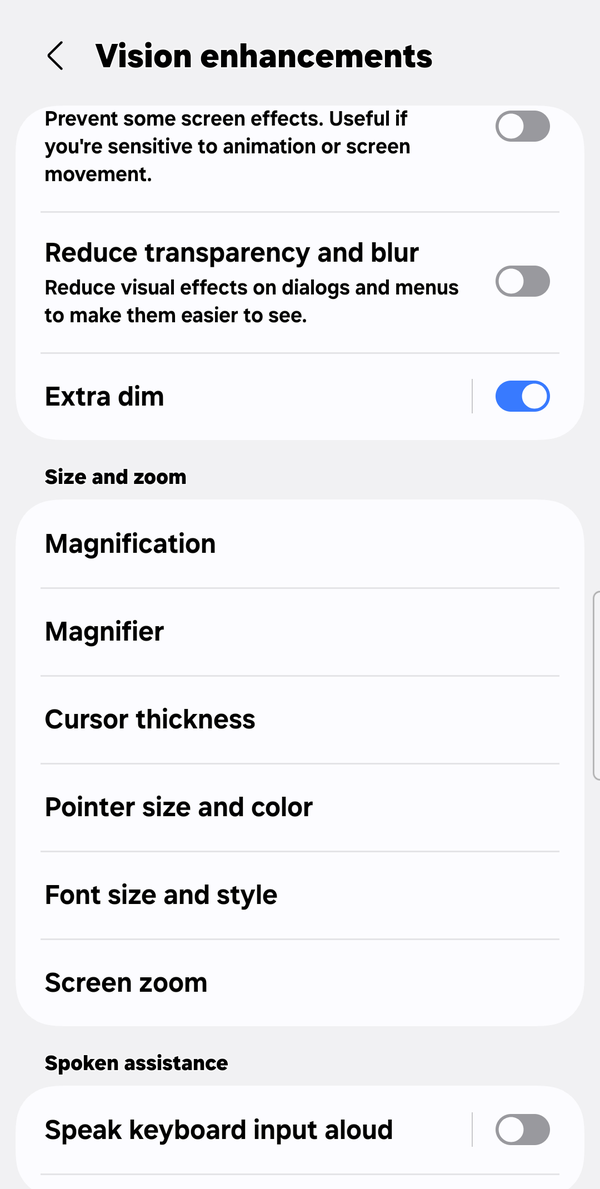
- If the lowest brightness is still too bright, turn on Extra dim: Settings > Accessibility > Extra dim on Pixel phones, Settings > Accessibility > Vision enhancements > Extra dim on a Galaxy. Google's help describes it as dimming the screen "beyond your phone's minimum brightness". On Pixel 10 and later it has moved into the brightness slider in Quick Settings.
- For apps that have no dark mode of their own, Google suggests Color inversion (Settings > Accessibility > Color and motion on Pixel; under Vision enhancements on a Galaxy), which flips every color on the screen. Google's help points out that it "applies to everything including media", so photos and videos will look wrong while it is on. Treat it as a reading tool you switch on and off, not a permanent setting.
Colors that look alike: Color correction
If red and green, or blue and purple, are hard to tell apart, Color correction shifts colors so the difference shows. It is at Settings > Accessibility > Color and motion > Color correction, with a choice of correction modes; Google notes that an intensity slider is available on some devices and not others. On a Galaxy phone the same tool is called Color adjustment in the settings (Samsung's help pages say Color correction), and next to it is a separate Color filter, an adjustable tint over the whole screen; both are under Vision enhancements.
Something stays small: Magnification
Everything above changes how the phone draws text. None of it touches text inside a photo, a screenshot a friend sent, a label in a shopping app, or an app that sets its own fixed size. For those, Magnification zooms in on the pixels themselves. It is at Settings > Accessibility > Magnification on Pixel phones, and at Settings > Accessibility > Vision enhancements > Size and zoom > Magnification on a Galaxy; you turn on a shortcut, then zoom the whole screen or, on Android 13 and later, a window over part of it. How to set it up, the three shortcuts, and the triple-tap side effect are all in the first post of this series: Does your Android phone have a magnifier?
Reading is tiring: Select to Speak
Sometimes the easiest way to get through a long article is not to read it. Select to Speak reads aloud whatever you point at, without turning the whole phone into a screen reader.
Select to Speak comes with Google's Android Accessibility Suite app. On Pixel phones it is already there. On some Samsung phones it is not: the Galaxy used for this post had only TalkBack under Accessibility, because that app was not installed. Google's help says that if you do not see Select to Speak, go to Google Play and download the latest version of Android Accessibility Suite. Once it is on the phone:
- Open Settings > Accessibility > Select to Speak and turn on the Select to Speak shortcut.
- Start it with the shortcut (the accessibility button, or a two-finger swipe up from the bottom, depending on your setup).
- Tap a block of text or a picture to hear it, drag your finger across several items to hear them in turn, or tap Play to hear everything on the screen. The player has pause, skip and speed controls.
- In Select to Speak's own settings you can turn on Read in background, so the reading continues while you scroll or switch apps.
Google warns that Select to Speak "might not work with every mobile web browser".
Cannot see the screen well enough to read: TalkBack
If the question is no longer "how do I make this clearer" but "how do I use the phone without seeing it", the tool is TalkBack, Google's screen reader, under Settings > Accessibility. It changes how every gesture works, so it is a different way of using the phone rather than a setting to add, and its first run opens a tutorial. It is outside the scope of this post, but it is where to go when magnification is no longer enough.
Where Zoomi fits
Zoomi (by IEUMAPPS) is an Android screen magnification accessibility app for people with low vision and other visual difficulties: one floating button opens a magnifier window and enlarges the text across the phone.
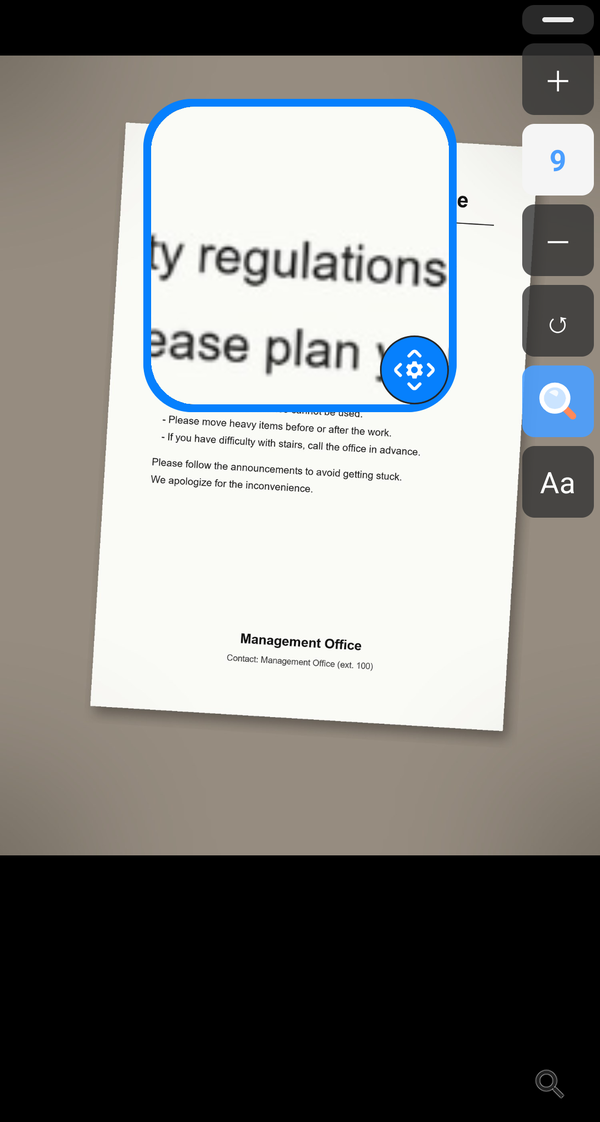
Of everything above, Magnification is the tool you reach for most often during a day, because it is the only one that works on photos and on apps that ignore the font slider, and it is also the one with the most steps each time: a shortcut, a tap, then two fingers to move around, then the shortcut again. Zoomi keeps that tool behind a button that stays on the screen. Tap it for Screen zoom, a magnifier window with 9 levels that you drag over the part you are reading, or for Bigger text, which raises the system font size across 9 levels without a trip into Settings. The button can be dragged anywhere and shrinks on its own when you are done.
Zoomi runs on Android 8.0 or later; the magnifier window needs Android 13 or later, and older versions magnify the whole screen. It uses Android's accessibility service only to control the zoom and does not declare the permission to read screen content. Everything is free for 14 days, then a single one-time unlock ($0.99 in the US, prices vary by country). No subscription, no ads.
FAQ
Do I need to download a low vision app for Android, or is it built in? Most of it is built in. Font size, Display size, Bold text, High contrast or Outline text, Color correction, Color inversion, Extra dim, Magnification and TalkBack are all under Settings > Accessibility (Samsung: mostly under Vision enhancements). Select to Speak needs Google's Android Accessibility Suite app, which some Samsung phones do not ship with. An app like Zoomi adds a way to reach magnification and text size from one on-screen button; it does not replace the settings.
Which setting should I try first if text is hard to read? Font size, on its own, and live with it for a day. If the text is big but still faint, add Bold text or High contrast text. Save Magnification for the things that stay small: photos, web pages and apps that ignore the font setting.
Is Zoomi a camera magnifier for reading menus and labels? No. Zoomi magnifies what is on the phone's screen. For things in front of the phone, Galaxy phones have a separate camera Magnifier feature.
If the tool you use most is the magnifier, and you would rather have it on a button than behind a gesture, the Zoomi guide, FAQ and privacy details are here: